デモ
デモを読み込めませんでした。
仕様
- 用途
- アイコン
- 動作
- DOM
- 種類
- レシピ
- 使うもの
- DrawSVGPlugin
- 動作確認
- three 0.186.0・gsap 3.15.0
- 公開日
しくみと調整
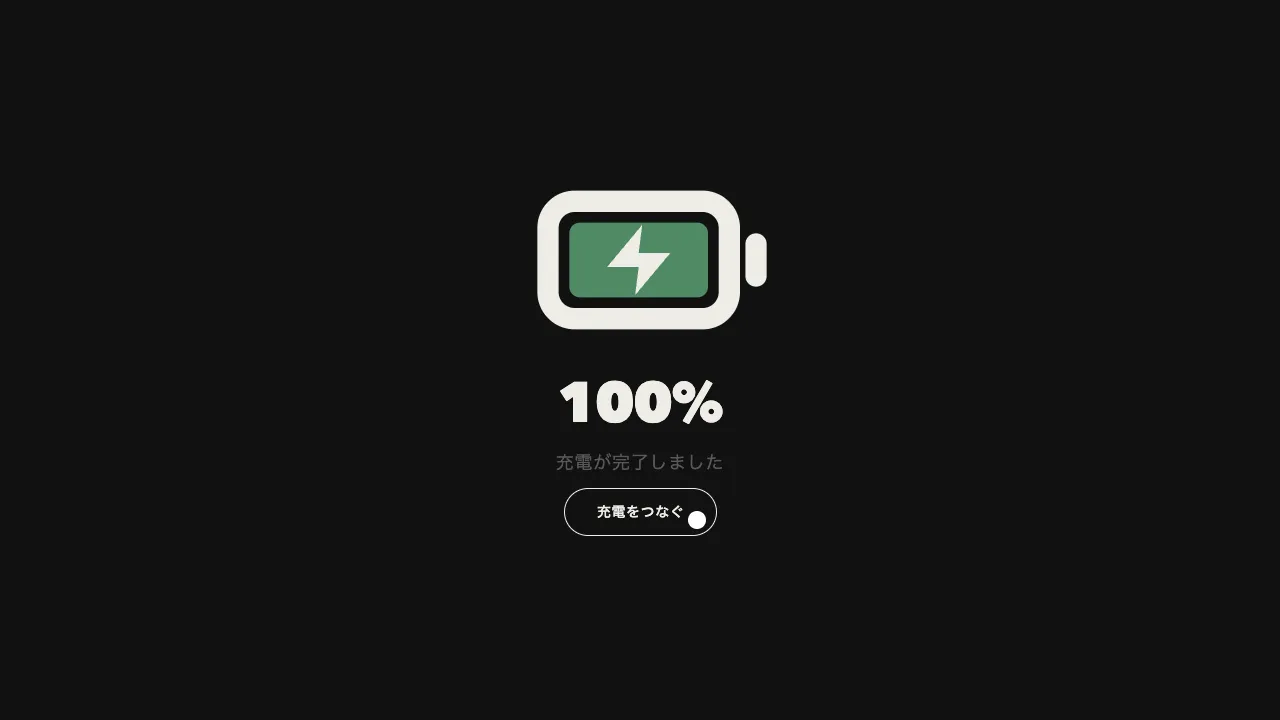
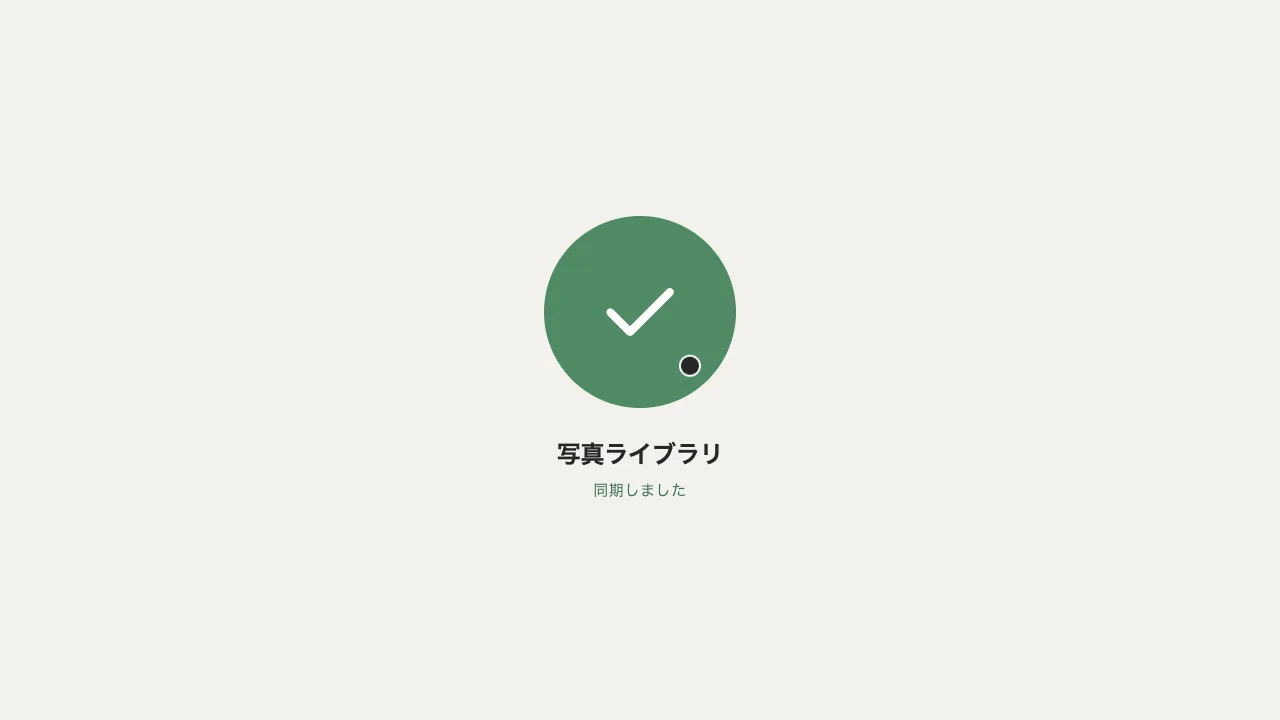
コピーのアイコンは、前後 2 枚の角丸の紙を線で描いたものです(後ろの紙は、前の紙に隠れない部分だけを描きます)。押すと、後ろの紙が前の紙へ重なって消え、重なった紙が回りながら縮んで消えたあとに、チェックが弾みながら描かれます。同時にボタンが成功の緑に塗られ、上に「コピーしました」の吹き出しが出て、コードの行が一瞬光ります。1.45 秒保つと、チェックが縮んで消え、紙が戻ります。
3 つの段は少しずつ重ねてずらします。後ろの紙は左下へずれながら 0.16 秒で消え、前の紙は −45° 回りながら 0.3 倍まで 0.22 秒で縮みます。チェックは DrawSVGPlugin で 0.32 秒かけて描き、同時に 0.6 倍から back.out(2.5) で弾ませます。紙が消えきる前にチェックが描き始まるので、形が入れ替わったように見えます。
SVG の中の図形を回したり縮めたりすると、何も指定しなければ軸が svg の左上になり、紙が大きく振れて消えます。svgOrigin で、紙とチェックそれぞれの中心を軸に置きます。緑の地はボタンの子に重ねた別の要素にし、ホバーの地(ボタンの背景色)と分けます。吹き出しはボタンの右端にそろえると、コードブロックが画面の右端に近い狭い画面でも、はみ出しません。
戻りまで 1 本のタイムラインに入れてあるので、押すたびに restart するだけで、連打しても頭からやり直します。写すのは見えているタブのコマンドだけで、プロンプトの「$」は写しません。吹き出しは見た目だけにし、読み上げには role「status」の見えない要素で「クリップボードにコピーしました」と知らせます。許可が無いときや http のページで写せなかったときは、チェックを出さずに失敗を知らせます。
動きを減らす設定では、ほぼ一瞬で切り替え、チェックを見せる長さだけは同じに保ちます。チェックを見せる長さ・3 つの段のずらし方・弾みの強さで印象が変わります。ドキュメントのコードブロックのほか、API キー・招待リンク・クーポンコードのコピーに向いています。
コード
<div class="code">
  <div class="code__head">
    <!-- タブで、見せるコマンドを切り替える(押している方を aria-pressed で伝える) -->
    <div class="code__tabs" role="group" aria-label="パッケージマネージャー">
      <button class="code__tab" type="button" aria-pressed="true">npm</button>
      <button class="code__tab" type="button" aria-pressed="false">pnpm</button>
      <button class="code__tab" type="button" aria-pressed="false">yarn</button>
    </div>
    <div class="code__copy">
      <!-- 吹き出しは見た目だけ。読み上げには下の status が知らせる -->
      <span class="code__tip" aria-hidden="true">コピーしました</span>
      <!-- アイコンだけのボタンなので、名前は aria-label に書く -->
      <button class="copy" type="button" aria-label="コードをコピー">
        <span class="copy__tint" aria-hidden="true"></span>
        <svg class="copy__icon" viewBox="0 0 24 24" aria-hidden="true" focusable="false">
          <!-- 後ろの紙は、前の紙に隠れない部分だけの線 -->
          <path class="copy__back" d="M9 9V6a2 2 0 0 1 2-2h7a2 2 0 0 1 2 2v7a2 2 0 0 1-2 2h-3" />
          <path class="copy__front" d="M6 9h7a2 2 0 0 1 2 2v7a2 2 0 0 1-2 2H6a2 2 0 0 1-2-2v-7a2 2 0 0 1 2-2z" />
          <path class="copy__check" d="M5 12.5 9.5 17 19 7.5" />
        </svg>
      </button>
    </div>
  </div>
  <div class="code__body">
    <span class="code__flash" aria-hidden="true"></span>
    <!-- タブと同じ並びのコマンド。$ は写さないので、コピーするのは code の中だけ -->
    <pre class="code__line"><span class="code__prompt" aria-hidden="true">$ </span><code><span class="code__cmd">npm</span> install <span class="code__pkg">lanternkit</span></code></pre>
    <pre class="code__line" hidden><span class="code__prompt" aria-hidden="true">$ </span><code><span class="code__cmd">pnpm</span> add <span class="code__pkg">lanternkit</span></code></pre>
    <pre class="code__line" hidden><span class="code__prompt" aria-hidden="true">$ </span><code><span class="code__cmd">yarn</span> add <span class="code__pkg">lanternkit</span></code></pre>
  </div>
</div>

<!-- 読み上げへの知らせ(ページに 1 つ)。文は data-* から入れる -->
<p class="copy-status" role="status" data-done="クリップボードにコピーしました" data-failed="コピーできませんでした"></p>.code {
--bg: #262626; /* コードの地(ページの文字の色で明暗を反転) */
--ink: #eeece6; /* コードの文字・ボタンの線 */
--mute: #a8a6a0; /* 選んでいないタブ・プロンプト */
--line: rgba(238, 236, 230, 0.14); /* 見出しの行の区切り */
--hover: rgba(238, 236, 230, 0.12); /* ボタンに重ねたときの地 */
--success: #4f8a64; /* コピーしたあとのボタン */
--on-success: #ffffff; /* 緑の地の上のチェック */
--flash: #2e3a32; /* コピーした行の光(地に成功の色を 20% 混ぜた色) */
--tip: #262626; /* 吹き出しの地 */
--tip-ink: #ffffff; /* 吹き出しの文字 */
max-width: 720px;
border-radius: 4px;
background: var(--bg);
color: var(--ink);
}
.code__head { display: flex; align-items: center; gap: 24px; height: 56px; padding: 0 8px 0 24px; border-bottom: 1px solid var(--line); }
.code__tabs { display: flex; gap: 24px; align-self: stretch; }
.code__tab {
padding: 0;
border: 0;
background: none;
color: var(--mute);
font: inherit;
font-size: 14px;
font-weight: 600;
letter-spacing: 0.04em;
cursor: pointer;
}
/* 選んでいるタブは、文字の色の下線 */
.code__tab[aria-pressed="true"] { color: var(--ink); box-shadow: inset 0 -2px 0 var(--ink); }
/* 吹き出しを重ねる基準。吹き出しはボタンの右端にそろえ、狭い画面でも右へはみ出さないようにする */
.code__copy { position: relative; margin-left: auto; }
/* アイコンだけのボタンは線の丸。線は inset の影で引き、緑の地(tint)で線ごと覆う */
.copy {
position: relative;
display: grid;
place-items: center;
width: 40px;
height: 40px;
padding: 0;
border: 0;
border-radius: 50%;
background-color: transparent;
box-shadow: inset 0 0 0 1px var(--ink);
color: var(--ink);
cursor: pointer;
transition: background-color 0.15s linear;
}
.copy:hover { background-color: var(--hover); }
.copy__tint { position: absolute; inset: 0; border-radius: 50%; background: var(--success); opacity: 0; visibility: hidden; }
/* 24 グリッドで線幅 2。緑の地より上に描くため、位置を持たせる */
.copy__icon { position: relative; width: 24px; height: 24px; overflow: visible; fill: none; stroke: currentColor; stroke-width: 2; stroke-linecap: round; stroke-linejoin: round; }
.copy__check { stroke: var(--on-success); }
.code__tip {
position: absolute;
right: 0;
bottom: calc(100% + 14px);
padding: 8px 12px;
border-radius: 4px;
background: var(--tip);
color: var(--tip-ink);
font-size: 14px;
font-weight: 600;
line-height: 1.5;
letter-spacing: 0.04em;
white-space: nowrap;
opacity: 0;
visibility: hidden;
}
/* 吹き出しの三角。ボタンの中心(右から 20px)の真上に置く */
.code__tip::after { content: ""; position: absolute; top: 100%; right: 14px; width: 12px; height: 6px; background: inherit; clip-path: polygon(0 0, 100% 0, 50% 100%); }
.code__body { position: relative; padding: 24px; overflow-x: auto; font: 500 20px/1.2 ui-monospace, "SF Mono", Menlo, monospace; }
.code__line { position: relative; margin: 0; font: inherit; }
.code__flash { position: absolute; inset: 8px; border-radius: 4px; background: var(--flash); opacity: 0; visibility: hidden; }
.code__prompt { color: var(--mute); user-select: none; }
.code__cmd { color: #98b1c4; }
.code__pkg { color: #a5c0a3; }
.code__tab:focus-visible, .copy:focus-visible { outline: 2px solid var(--ink); outline-offset: 2px; }
/* 目には見せず、読み上げにだけ届ける */
.copy-status { position: absolute; width: 1px; height: 1px; overflow: hidden; clip-path: inset(50%); white-space: nowrap; }
@media (prefers-reduced-motion: reduce) {
.copy { transition: none; }
}import { gsap } from "gsap";
import { DrawSVGPlugin } from "gsap/DrawSVGPlugin";
gsap.registerPlugin(DrawSVGPlugin);
const reduceMotion = window.matchMedia("(prefers-reduced-motion: reduce)").matches;
const SPEED = reduceMotion ? 20 : 1; // 動きを減らす設定では、ほぼ一瞬で切り替える
const HOLD = 1.45; // チェックを見せておく秒数(動きを減らす設定でも同じ長さ)
const status = document.querySelector(".copy-status");
document.querySelectorAll(".code").forEach((block) => {
const tabs = block.querySelectorAll(".code__tab");
const lines = block.querySelectorAll(".code__line");
const button = block.querySelector(".copy");
const [back, front, check] = [".copy__back", ".copy__front", ".copy__check"].map((s) => button.querySelector(s));
const [tint, tip, flash] = [".copy__tint", ".code__tip", ".code__flash"].map((s) => block.querySelector(s));
// タブを押すと、同じ並びのコマンドだけを見せる
tabs.forEach((tab, i) => {
tab.addEventListener("click", () => {
tabs.forEach((other, j) => other.setAttribute("aria-pressed", String(i === j)));
lines.forEach((line, j) => (line.hidden = i !== j));
});
});
// コピー → チェック → 保つ → コピー。戻りまで 1 本に入れてあるので、押すたびに頭から流すだけ
const ready = 0.58; // チェックが出きる時刻
const copied = gsap
.timeline({ paused: true, onComplete: () => (status.textContent = "") })
// 1. 後ろの紙が前の紙へ重なって消える
.fromTo(back, { x: 0, y: 0 }, { x: -5, y: 5, duration: 0.16, ease: "power2.in" }, 0)
.fromTo(back, { opacity: 1 }, { opacity: 0, duration: 0.05, ease: "none" }, 0.14)
// 2. 重なった紙が、自分の中心を軸に回りながら縮んで消える(SVG の中の図形は、軸を svgOrigin で置く)
.fromTo(front, { scale: 1, rotation: 0, opacity: 1, svgOrigin: "9.5 14.5" }, { scale: 0.3, rotation: -45, opacity: 0, svgOrigin: "9.5 14.5", duration: 0.22, ease: "power2.in" }, 0.12)
// 3. チェックが弾みながら描かれる
.fromTo(check, { drawSVG: "0%" }, { drawSVG: "100%", duration: 0.32, ease: "power3.out" }, 0.26)
.fromTo(check, { scale: 0.6, opacity: 1, svgOrigin: "12 12" }, { scale: 1, svgOrigin: "12 12", duration: 0.5, ease: "back.out(2.5)" }, 0.26)
// ボタンの緑の地・吹き出し・行の光。光はチェックが出きるまで保ってから消す
.fromTo(tint, { autoAlpha: 0 }, { autoAlpha: 1, duration: 0.2, ease: "none" }, 0.2)
.fromTo(tip, { autoAlpha: 0, y: 8 }, { autoAlpha: 1, y: 0, duration: 0.32, ease: "back.out(2)" }, 0.22)
.fromTo(flash, { autoAlpha: 0 }, { autoAlpha: 1, duration: 0.2, ease: "power1.out" }, 0.05)
.to(flash, { autoAlpha: 0, duration: 0.5, ease: "power1.in" }, ready + 0.2)
// 4. 保ったら、チェックを縮めて消し、紙を戻す。保つ長さは速めた分だけ延ばし、実時間では HOLD 秒にする
.addLabel("reset", ready + HOLD * SPEED)
.to(check, { scale: 0.6, opacity: 0, duration: 0.18, ease: "power2.in" }, "reset")
.to(front, { scale: 1, rotation: 0, opacity: 1, duration: 0.42, ease: "back.out(2)" }, "reset+=0.12")
.to(back, { opacity: 1, duration: 0.05, ease: "none" }, "reset+=0.3")
.to(back, { x: 0, y: 0, duration: 0.3, ease: "power3.out" }, "reset+=0.3")
.to(tint, { autoAlpha: 0, duration: 0.3, ease: "none" }, "reset")
.to(tip, { autoAlpha: 0, duration: 0.2, ease: "power1.in" }, "reset")
.timeScale(SPEED);
button.addEventListener("click", async () => {
// 見えているタブのコマンドだけを写す($ は code の外なので入らない)
const code = [...lines].find((line) => !line.hidden).querySelector("code");
try {
await navigator.clipboard.writeText(code.textContent);
} catch {
status.textContent = status.dataset.failed; // 許可が無い・http のページなどでは写せない
return;
}
status.textContent = status.dataset.done;
copied.restart(); // 連打しても頭からやり直すだけ
});
});