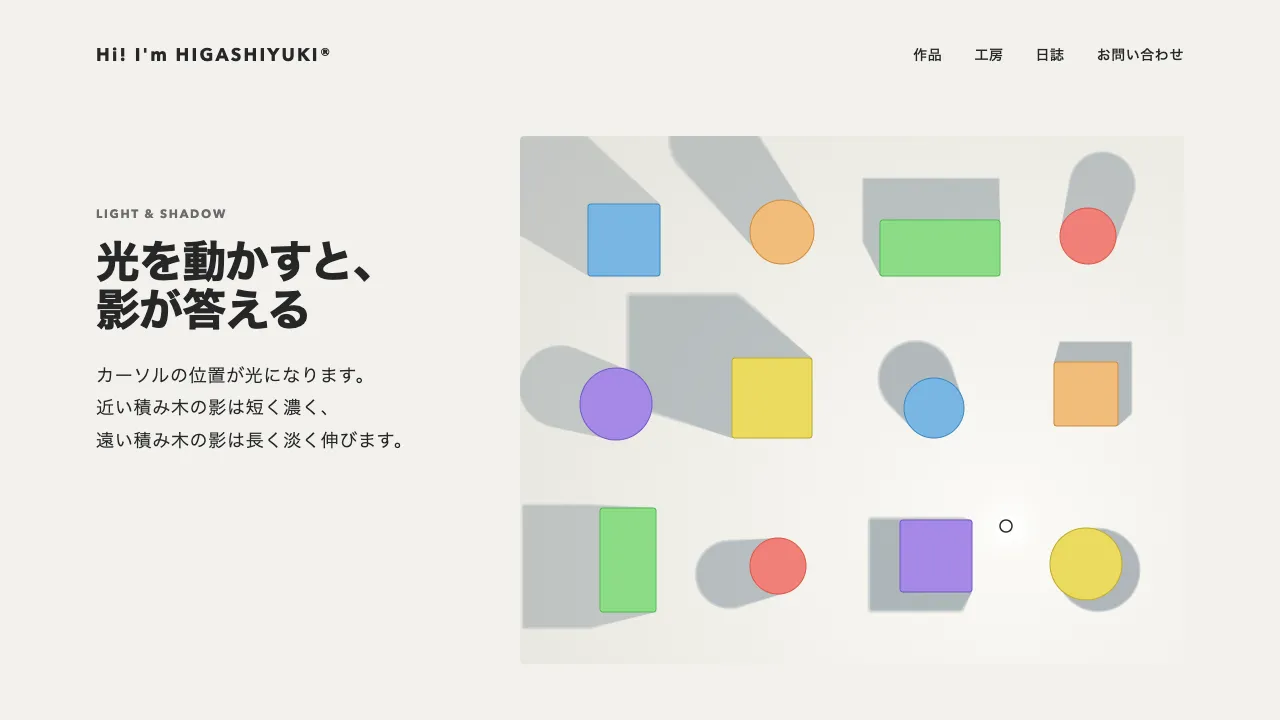
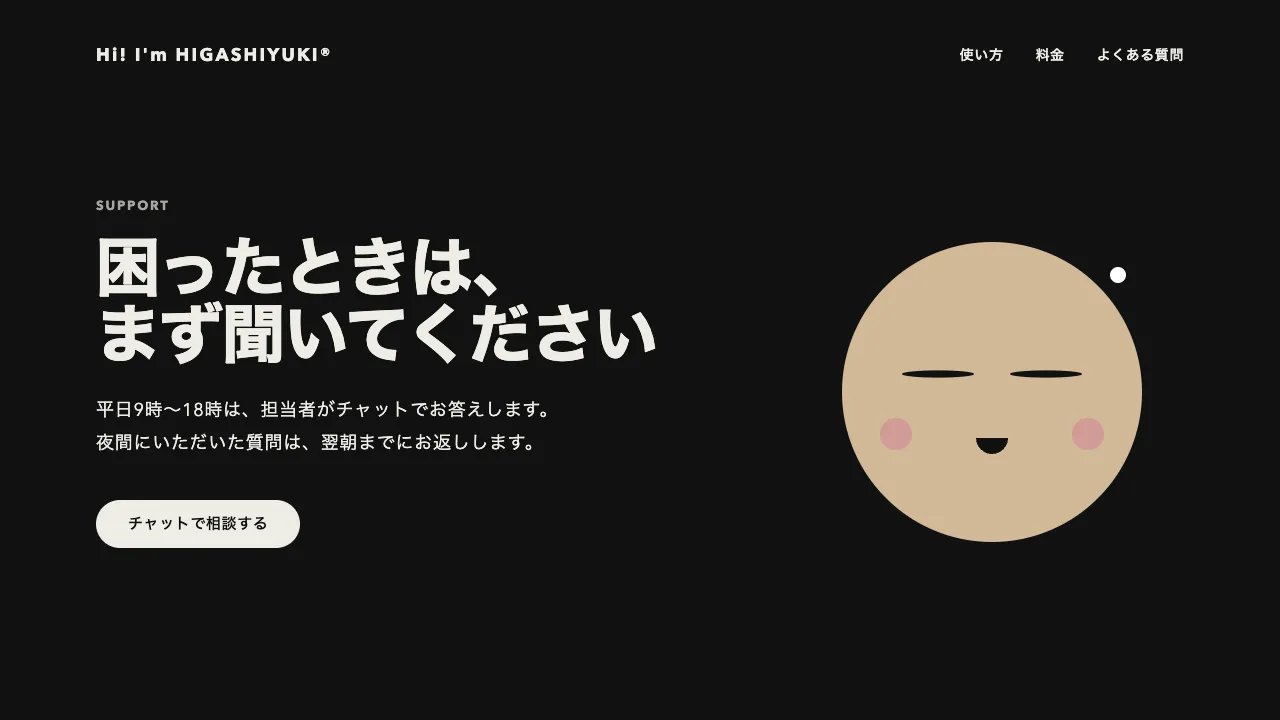
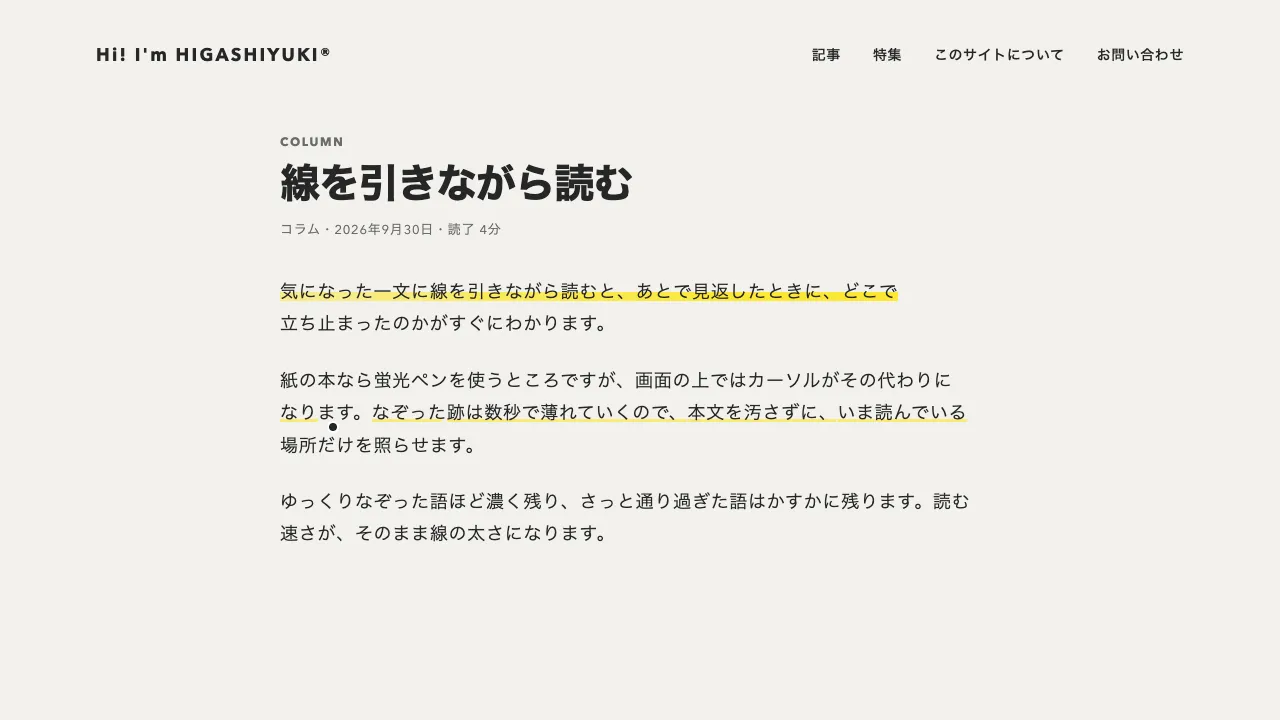
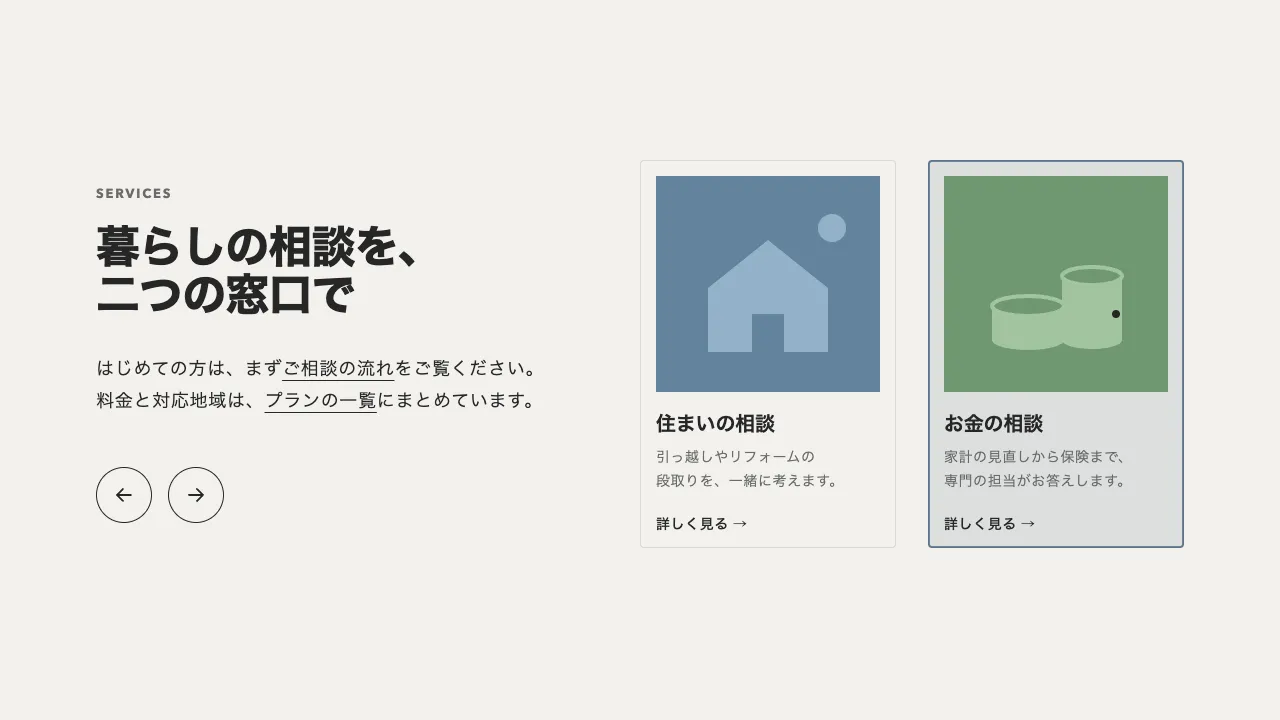
デモ
デモを読み込めませんでした。
仕様
- 用途
- カーソル
- 動作
- DOM
- 種類
- レシピ
- 動作確認
- three 0.186.0・gsap 3.15.0
- 公開日
しくみと調整
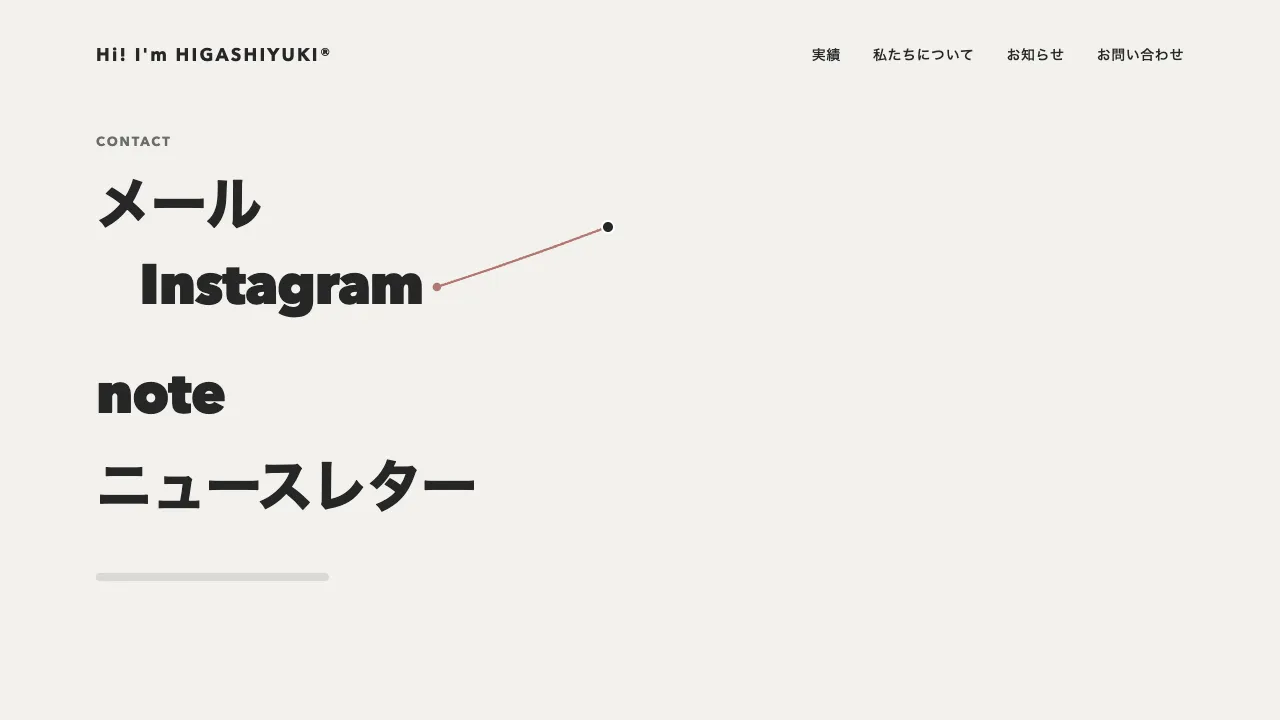
カーソルの右下に、明暗を反転した小さな丸帯の札を画面に固定して置き、ポインタに 0.12 秒遅れてついてこさせます。札の中には文言を物の種類ごとに 1 つずつ重ねておき、対象の要素には data-cursor-tag で出す文言の名前を書きます。乗った要素から closest でいちばん内側の対象を探すので、本文の中のリンクの上ではリンクの「開く」が勝ちます。何の上にもいないときは、札を直径 8px の点にしぼめます。
札の幅は、次の文言の幅に左右の余白 12px を足した値へ 0.35 秒の power3.out で伸び縮みさせ、同時に前の文言を上へ抜き、次の文言を下から 0.3 秒で入れます。大きさは scale ではなく幅と高さそのものを動かします。scale だと中の文字まで伸び縮みしてしまうからです。文言は札の overflow を hidden にして切り抜くので、伸びる途中は左から現れ、縮む途中は右から切れていきます。
札は、左端の縦の中央をカーソルから右へ 18px・下へ 26px の所に置き、右と上下へ広げます。高さが 8px から 28px へ変わっても中央がずれないよう、縦は yPercent の −50 で合わせます。上端で合わせると、しぼむたびに札が上へ跳ねて見えます。物から物へ素早く渡ると前の伸び縮みが残って値を取り合うので、overwrite を auto にして古いトゥイーンを捨てさせます。
つまみは、文言の組と種類、点と丸帯の大きさ、カーソルからのずれ、伸び縮みと入れ替えの時間です。画像の上で大きな丸のラベルに変わるカーソルと違い、本物のカーソルはそのまま残し、横の小さな札だけで「ここで何ができるか」を伝えるので、記事や管理画面のように操作の種類が多い画面でも邪魔になりません。キーボードで移ったときは対象の右下に同じ札を出し、ポインタの無い端末では出しません。動きを減らす設定では、遅れと伸び縮みをほぼ一瞬にします。
コード
<article class="context-article">
  <div class="context-article__body">
    <p class="context-article__label">JOURNAL</p>
    <h2 class="context-article__title">道具を選ぶ、<br>手ざわりを選ぶ</h2>
    <!-- data-cursor-tag は、乗ったときに札へ出す文言の名前(下の .cursor-tag の data-tag と合わせる)。内側の要素の名前が勝つ -->
    <p class="context-article__text" data-cursor-tag="copy">使い込むほど手になじむ道具には、<br>選ぶ人の暮らしが少しずつ映ります。</p>
    <p class="context-article__text" data-cursor-tag="copy">季節ごとの手入れは、<a href="/guide/care/" data-cursor-tag="open">お手入れの手引き</a>にまとめました。</p>
    <button class="context-article__button" type="button" data-cursor-tag="press">記事を保存する</button>
  </div>
  <figure class="context-article__figure">
    <a class="context-article__image" href="/img/workbench-large.jpg" data-cursor-tag="zoom">
      <img src="/img/workbench.jpg" alt="工房の作業台">
    </a>
    <figcaption>工房の作業台。季節ごとに道具を入れ替えています。</figcaption>
  </figure>
</article>

<!-- カーソルの右下の札。文言は data-cursor-tag の値ごとに 1 つずつ入れておく -->
<div class="cursor-tag" aria-hidden="true">
  <span data-tag="zoom">拡大する</span>
  <span data-tag="copy">コピーできます</span>
  <span data-tag="open">開く</span>
  <span data-tag="press">押す</span>
</div>.cursor-tag {
/* しぼんだ点の直径・丸帯の高さ・左右の余白・カーソルからのずれ(右・下) */
--dot: 8px;
--height: 28px;
--pad: 12px;
--dx: 18px;
--dy: 26px;
position: fixed;
left: 0;
top: 0;
z-index: 9999;
width: var(--dot);
height: var(--dot);
border-radius: 999px;
/* 文言を札の中だけに見せる。はみ出した分は切り抜かれる */
overflow: hidden;
background: #262626;
pointer-events: none;
display: none;
}
.cursor-tag span {
position: absolute;
left: var(--pad);
top: 50%;
margin-top: calc(var(--height) / -2);
color: #fff;
font-size: 13px;
font-weight: 600;
line-height: var(--height);
letter-spacing: 0.04em;
white-space: nowrap;
}
/* JS がつないだときだけ出す。ポインタの無い端末では出さない */
.has-cursor-tag .cursor-tag {
display: block;
}
.context-article {
display: grid;
grid-template-columns: minmax(0, 544px) minmax(0, 480px);
justify-content: space-between;
gap: 64px;
max-width: 1088px;
margin: 0 auto;
padding: 96px 16px;
color: #262626;
letter-spacing: 0.04em;
}
.context-article__label {
margin: 0;
color: #6b6b6b;
font-size: 12px;
font-weight: 700;
letter-spacing: 0.14em;
}
.context-article__title {
margin: 20px 0 32px;
font-size: clamp(32px, 5vw, 44px);
font-weight: 800;
line-height: 1.1;
letter-spacing: -0.02em;
}
.context-article__text { margin: 16px 0 0; font-size: 18px; line-height: 1.8; }
.context-article__text a { color: inherit; text-decoration-thickness: 1px; text-underline-offset: 0.2em; }
.context-article__button {
height: 48px;
margin-top: 40px;
padding: 0 32px;
border: 0;
border-radius: 999px;
background: #262626;
color: #fff;
font-family: inherit;
font-size: 15px;
font-weight: 600;
letter-spacing: 0.04em;
cursor: pointer;
}
.context-article figcaption { margin-top: 16px; color: #6b6b6b; font-size: 13px; line-height: 1.6; letter-spacing: 0.06em; }
.context-article figure { margin: 0; }
.context-article__image { display: block; overflow: hidden; border-radius: 4px; }
.context-article__image img { display: block; width: 100%; aspect-ratio: 4 / 3; object-fit: cover; }
.context-article :focus-visible { outline: 2px solid #262626; outline-offset: 4px; }
@media (max-width: 860px) {
.context-article { grid-template-columns: minmax(0, 1fr); gap: 48px; }
}import { gsap } from "gsap";
const tag = document.querySelector(".cursor-tag");
// 指で触る端末にはポインタが無いので、札は出さない
const canHover = window.matchMedia("(hover: hover) and (pointer: fine)").matches;
const reduceMotion = window.matchMedia("(prefers-reduced-motion: reduce)").matches;
if (tag && canHover) {
const style = getComputedStyle(tag);
const [dot, height, pad, dx, dy] = ["--dot", "--height", "--pad", "--dx", "--dy"].map((name) => parseFloat(style.getPropertyValue(name)));
// 動きを減らす設定では、伸び縮みも文言の入れ替えもほぼ一瞬にする
const grow = reduceMotion ? 0.05 : 0.35;
const roll = reduceMotion ? 0.05 : 0.3;
// 札の左端の縦の中央をカーソルの右下に置く。高さが変わっても中央がずれないよう yPercent で合わせる
gsap.set(tag, { yPercent: -50, autoAlpha: 0 });
gsap.set(tag.querySelectorAll("[data-tag]"), { yPercent: 100 });
document.documentElement.classList.add("has-cursor-tag");
// 動きを減らす設定では遅れずに置く(quickTo は duration が 0 だと値が動かない)
const follow = (prop) => (reduceMotion ? (value) => gsap.set(tag, { [prop]: value }) : gsap.quickTo(tag, prop, { duration: 0.12, ease: "power3" }));
const moveX = follow("x");
const moveY = follow("y");
const place = (x, y, now) => {
if (now) gsap.set(tag, { x, y, autoAlpha: 1 });
moveX(x);
moveY(y);
};
let current = null;
// 札を name の文言に替える。null なら小さな点にしぼむ。幅は文言の幅 + 左右の余白
const show = (name) => {
if (name === current) return;
const prev = current && tag.querySelector(`[data-tag="${current}"]`);
const next = name && tag.querySelector(`[data-tag="${name}"]`);
gsap.to(tag, { width: next ? next.offsetWidth + pad * 2 : dot, height: next ? height : dot, duration: grow, ease: "power3.out", overwrite: "auto" });
if (prev) gsap.to(prev, { yPercent: -100, duration: roll, ease: "power3.out", overwrite: "auto" }); // 前の文言は上へ抜ける
if (next) gsap.fromTo(next, { yPercent: 100 }, { yPercent: 0, duration: roll, ease: "power3.out", overwrite: "auto" }); // 次の文言は下から入る
current = next ? name : null;
};
let seen = false;
window.addEventListener("pointermove", (event) => {
if (event.pointerType === "touch") return;
place(event.clientX + dx, event.clientY + dy, !seen);
seen = true;
});
// いちばん内側の対象の名前を取る(本文の中のリンクならリンク)
document.addEventListener("pointerover", (event) => {
if (event.pointerType === "touch") return;
show(event.target.closest("[data-cursor-tag]")?.dataset.cursorTag ?? null);
});
// 画面の外へ出たら、点にしぼんで消える。戻ったら、その位置から出す
document.documentElement.addEventListener("pointerleave", () => {
show(null);
gsap.to(tag, { autoAlpha: 0, duration: grow });
seen = false;
});
// キーボードで移ったときも、対象の右下に同じ札を出す(マウスで押したときの焦点では出さない)
document.querySelectorAll("a[data-cursor-tag], button[data-cursor-tag]").forEach((target) => {
target.addEventListener("focus", () => {
if (!target.matches(":focus-visible")) return;
const rect = target.getBoundingClientRect();
place(rect.right - 8 + dx, rect.bottom - 8 + dy, true);
show(target.dataset.cursorTag);
});
target.addEventListener("blur", () => show(null));
});
}