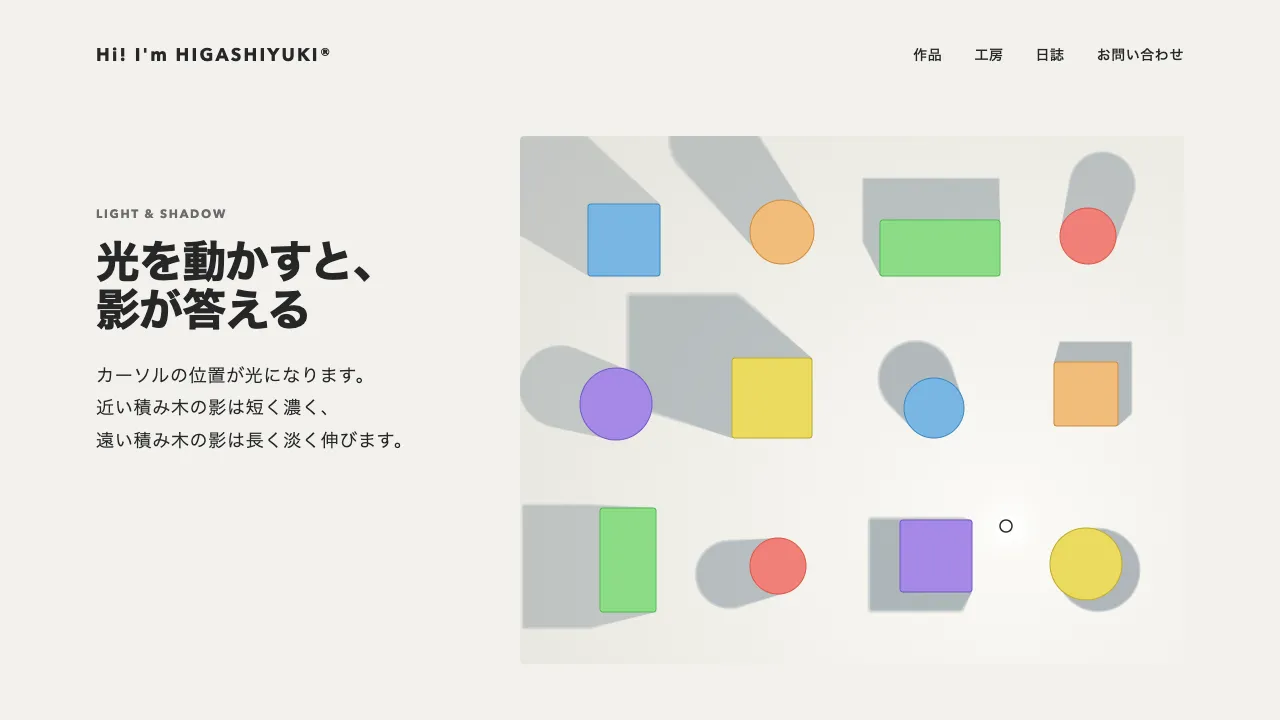
デモ
デモを読み込めませんでした。
仕様
- 用途
- カーソル
- 動作
- DOM
- 種類
- レシピ
- 動作確認
- three 0.186.0・gsap 3.15.0
- 公開日
しくみと調整
ポインタが動くたびに(pointermove)、前に写真を置いた位置からの距離を測り、一定の距離を越えたら、次の写真をその位置に置きます。写真は決まった枚数を順に使い回し、置くたびに重なり順を 1 つ上げるので、新しい写真ほど手前に来ます。置くかどうかを時間ではなく距離で決めるので、速く動かすほど写真の列が長く伸び、止まれば新しい写真は出ず、置いた写真だけが順に消えていきます。
置く間隔は、ヒーローの幅の 8.5% です。置いた写真は 0.08 秒で不透明になりながら、0.72 倍から等倍へ 0.35 秒の expo.out ではじけるように広がり、そこから 0.6 秒かけて 1.14 倍まで少し拡大しながら薄れて消えます。1 枚が見えているのは 1 秒足らずなので、ポインタを止めると、すぐに見出しが読める画面に戻ります。
写真の枚数は、同時に見える枚数より多く用意します。同時に見える枚数は、おおよそ「ポインタの速さ ÷ 置く間隔 × 1 枚の寿命」です。足りないと、消えきる前の写真が次の位置へ使い回されて、画面の上で跳んで見えます。使い回す写真は、前の動きを kill() で止めてから新しい動きを始めます。止めないと、古い動きと新しい動きが同じ写真の大きさと濃さを取り合い、現れたばかりの写真が急に消えます。
写真を重ねる層には pointer-events の none を付けて、下の見出しやリンクへポインタを通します。付けないと、写真が重なったリンクを押せなくなります。指で触る端末にはポインタが無いので、つなぐのはマウスのように細かく指せる端末だけにします。動きを減らす設定では大きさを変えず、その場に現れて薄れるだけにします。中央の見出しは、行ごとに、行末の「、」や「。」を数えず、その手前までの字面の左右の端の中央でそろえ、約物は右へぶら下げます。約物まで含めて中央にそろえると、約物の空きの分だけ字が左へ寄って見えます。
つまみは、置く間隔、写真の大きさ、現れる速さと消えるまでの時間です。間隔を詰めると写真が密に重なって帯のようになり、広げると 1 枚ずつが際立ちます。写真の縦横の比をそろえておくと、列の形が整って見えます。フォトグラファーや映像制作、デザインスタジオの作品集のトップ、キャンペーンのヒーローに向いています。
コード
<section class="trail-hero" aria-labelledby="trail-hero-title">
  <p class="trail-hero__eyebrow">Photography & film — since 2014</p>
  <h1 class="trail-hero__title" id="trail-hero-title"><span class="trail-hero__line">旅先の風景を、</span><span class="trail-hero__line">撮っています。</span></h1>
  <p class="trail-hero__lead">ここに説明文が入ります。</p>

  <!-- カーソルの跡に置く写真。飾りなので読み上げから外す。
       枚数は、同時に見える枚数(速さ ÷ 置く間隔 × 1 枚の寿命)より多くする。足りないと、消えきる前の写真が跳ぶ -->
  <div class="trail-hero__pool" aria-hidden="true">
    <img class="trail-hero__photo" src="/images/trail-01.jpg" alt="" width="400" height="500">
    <img class="trail-hero__photo" src="/images/trail-02.jpg" alt="" width="400" height="500">
    <img class="trail-hero__photo" src="/images/trail-03.jpg" alt="" width="400" height="500">
    <img class="trail-hero__photo" src="/images/trail-04.jpg" alt="" width="400" height="500">
    <img class="trail-hero__photo" src="/images/trail-05.jpg" alt="" width="400" height="500">
    <img class="trail-hero__photo" src="/images/trail-06.jpg" alt="" width="400" height="500">
    <img class="trail-hero__photo" src="/images/trail-07.jpg" alt="" width="400" height="500">
    <img class="trail-hero__photo" src="/images/trail-08.jpg" alt="" width="400" height="500">
    <img class="trail-hero__photo" src="/images/trail-09.jpg" alt="" width="400" height="500">
    <img class="trail-hero__photo" src="/images/trail-10.jpg" alt="" width="400" height="500">
    <img class="trail-hero__photo" src="/images/trail-11.jpg" alt="" width="400" height="500">
    <img class="trail-hero__photo" src="/images/trail-12.jpg" alt="" width="400" height="500">
    <img class="trail-hero__photo" src="/images/trail-13.jpg" alt="" width="400" height="500">
    <img class="trail-hero__photo" src="/images/trail-14.jpg" alt="" width="400" height="500">
    <img class="trail-hero__photo" src="/images/trail-15.jpg" alt="" width="400" height="500">
    <img class="trail-hero__photo" src="/images/trail-16.jpg" alt="" width="400" height="500">
  </div>
</section>.trail-hero {
--bg: #111111;
--ink: #eeece6;
--mute: #a8a6a0;
--photo-width: clamp(120px, 12.5vw, 200px);
--photo-ratio: 4 / 5;
--photo-radius: 4px;
position: relative;
display: grid;
place-content: center;
min-height: 100vh;
box-sizing: border-box;
padding: 96px 24px;
overflow: hidden;
background: var(--bg);
color: var(--ink);
text-align: center;
}
.trail-hero__eyebrow {
margin: 0 0 24px;
font-size: 13px;
font-weight: 700;
letter-spacing: 0.14em;
text-transform: uppercase;
color: var(--mute);
}
.trail-hero__title {
margin: 0;
font-size: clamp(44px, 7vw, 72px);
font-weight: 800;
line-height: 1.05;
letter-spacing: -0.02em;
}
/* 行ごとの箱。JS が行ごとに字面の中央をそろえる */
.trail-hero__line { display: block; }
.trail-hero__lead {
margin: 24px 0 0;
font-size: 18px;
line-height: 1.8;
letter-spacing: 0.04em;
word-break: auto-phrase;
}
/* 写真は文字の上に重ねる。ポインタの邪魔をしないよう、クリックは下へ通す */
.trail-hero__pool {
position: absolute;
inset: 0;
pointer-events: none;
}
/* 左上に重ねて隠しておき、JS が写真の中心をポインタの位置へ動かす */
.trail-hero__photo {
position: absolute;
left: 0;
top: 0;
width: var(--photo-width);
height: auto;
aspect-ratio: var(--photo-ratio);
object-fit: cover;
border-radius: var(--photo-radius);
opacity: 0;
}import { gsap } from "gsap";
const SPACING = 0.085; // 写真を置く間隔(ヒーローの幅に対する比)。前に置いた位置からこれだけ離れたら次を置く
const POP = 0.35; // 置かれてから大きさが 1 になるまで(秒)。ここから薄れはじめる
const FADE = 0.6; // 少し拡大しながら薄れて消えるまで(秒)
const reduceMotion = window.matchMedia("(prefers-reduced-motion: reduce)").matches;
// 指で触る端末にはポインタが無いので、つながない(写真は出さず、見出しだけのヒーローのまま)
const canHover = window.matchMedia("(hover: hover) and (pointer: fine)").matches;
// 見出しの行ごとに、行末の約物(「、」「。」)は数えず、その手前までの字面(インクの左右の端)の中央を行の中央にそろえる。
// 約物は右へぶら下がる(含めて中央にすると、字が左へ寄って見える)。ずれは em で持ち、字の大きさが変わっても合う
document.fonts.ready.then(() => {
document.querySelectorAll(".trail-hero__title").forEach((title) => {
const style = getComputedStyle(title), ruler = document.createElement("canvas").getContext("2d");
Object.assign(ruler, { font: `${style.fontWeight} ${style.fontSize} ${style.fontFamily}`, letterSpacing: style.letterSpacing, textAlign: "left", lang: document.documentElement.lang || "ja" });
title.querySelectorAll(".trail-hero__line").forEach((line) => {
const { width } = ruler.measureText(line.textContent), ink = ruler.measureText(line.textContent.replace(/[、。,.」』)]+$/u, ""));
line.style.translate = `${(width / 2 - (ink.actualBoundingBoxRight - ink.actualBoundingBoxLeft) / 2) / parseFloat(style.fontSize)}em`;
});
});
});
document.querySelectorAll(".trail-hero").forEach((hero) => {
const photos = gsap.utils.toArray(".trail-hero__photo", hero);
if (!canHover || photos.length === 0) return;
// 動きを減らす設定では大きさを変えず、その場に現れて薄れるだけにする
const popFrom = reduceMotion ? 1 : 0.72;
const grow = reduceMotion ? 1 : 1.14;
const running = []; // 写真ごとの動き。使い回すときは、前の動きを止めてから
let count = 0;
let last = null; // 前に置いた位置
gsap.set(photos, { xPercent: -50, yPercent: -50 }); // 写真の中心をポインタに合わせる
hero.addEventListener("pointermove", (event) => {
const box = hero.getBoundingClientRect();
const x = event.clientX - box.left;
const y = event.clientY - box.top;
// 前に置いた位置から離れるまでは置かない。止まっていれば、新しい写真は出ない
if (last && Math.hypot(x - last.x, y - last.y) < box.width * SPACING) return;
last = { x, y };
const i = count % photos.length;
count += 1;
running[i]?.kill();
gsap.set(photos[i], { x, y, zIndex: count }); // 新しい写真ほど上に重ねる
running[i] = gsap
.timeline()
.fromTo(photos[i], { opacity: 0 }, { opacity: 1, duration: 0.08, ease: "none" }, 0)
.fromTo(photos[i], { scale: popFrom }, { scale: 1, duration: POP, ease: "expo.out" }, 0)
.to(photos[i], { scale: grow, duration: FADE, ease: "power1.out" }, POP)
.to(photos[i], { opacity: 0, duration: FADE, ease: "power2.in" }, POP);
});
// 外へ出て戻ってきたら、入った位置にすぐ 1 枚置く
hero.addEventListener("pointerleave", () => {
last = null;
});
});